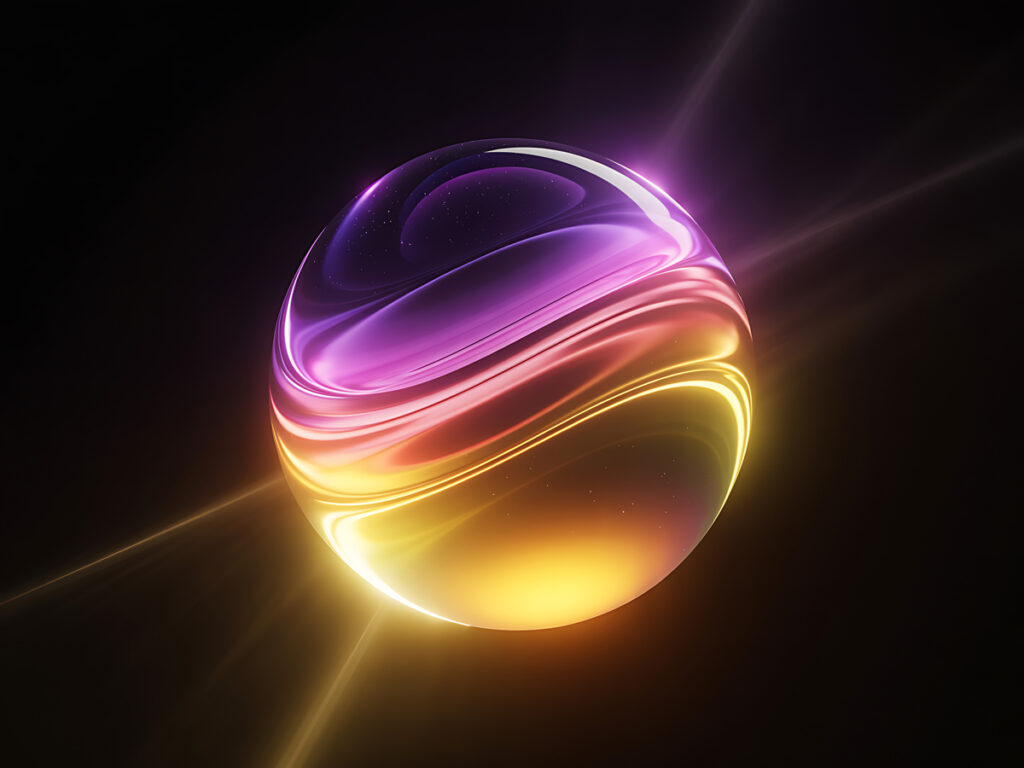
Creating realistic, glowing light effects can turn a flat design into a stunning masterpiece. This tutorial breaks down the process of crafting vibrant energy spheres and light trails, similar to the one in our featured image.
1. Build the FoundationStart with a dark or black background. This provides the contrast needed to make your light effects pop. Use a soft, round brush with low opacity to paint a faint “core” of color where you want your light source to be.
2. Layering Shapes and CurvesThe secret to a complex light effect is layering multiple shapes with different opacities.Create Your Shape: Use the Ellipse tool to create a circle.Warp and Distort: Use the “Warp” tool (Ctrl+T, then right-click and select Warp) to push and pull the edges, creating those liquid-like curves.Gradient Overlays: Apply a Gradient Overlay in the Layer Styles menu. Choose contrasting colors—like the vibrant purple and warm gold in our example—to create visual tension.
3. Harness the Power of Blending ModesBlending modes are your best friend when working with light.Screen and Color Dodge: These are the most effective for glows. Place your colored shapes on separate layers and experiment with these modes to see how they interact.Outer Glow: Use the Layer Styles menu to add a subtle “Outer Glow” to your main shapes. Keep the “Spread” low and the “Size” moderate for a soft, natural fall-off.
4. Adding Dimension with Light TrailsTo create those sharp, energetic streaks of light:The Pen Tool: Draw a long, slightly curved path across your composition.Stroke Path: Select a small, hard brush. In the Paths panel, right-click your path and select “Stroke Path.” Make sure “Simulate Pressure” is checked to get tapered ends.Blur it Out: Apply a small amount of Gaussian Blur to the trail to soften it, then use a “Motion Blur” aligned with the path’s direction for a sense of speed.
5. Final Touches: Highlights and ParticlesFinish your piece by adding “hot spots” of pure white or very light yellow at the brightest points of your curves. Finally, use a tiny, scattered brush with high “Size Jitter” to paint a few “dust” particles or sparks around the glow to give it atmosphere.
Pro Tip: Don’t be afraid to stack multiple layers of the same effect with varying opacities to build up richness and depth!
Leave a Reply